CI/CD Study 3주차 Jenkins, ArgoCD
가시다님이 운영하시는 CI/CD Study 3주차 내용을 정리한 게시글 입니다.
1. 실습 환경 구성
이번 실습의 목표 구성도는 다음과 같습니다.
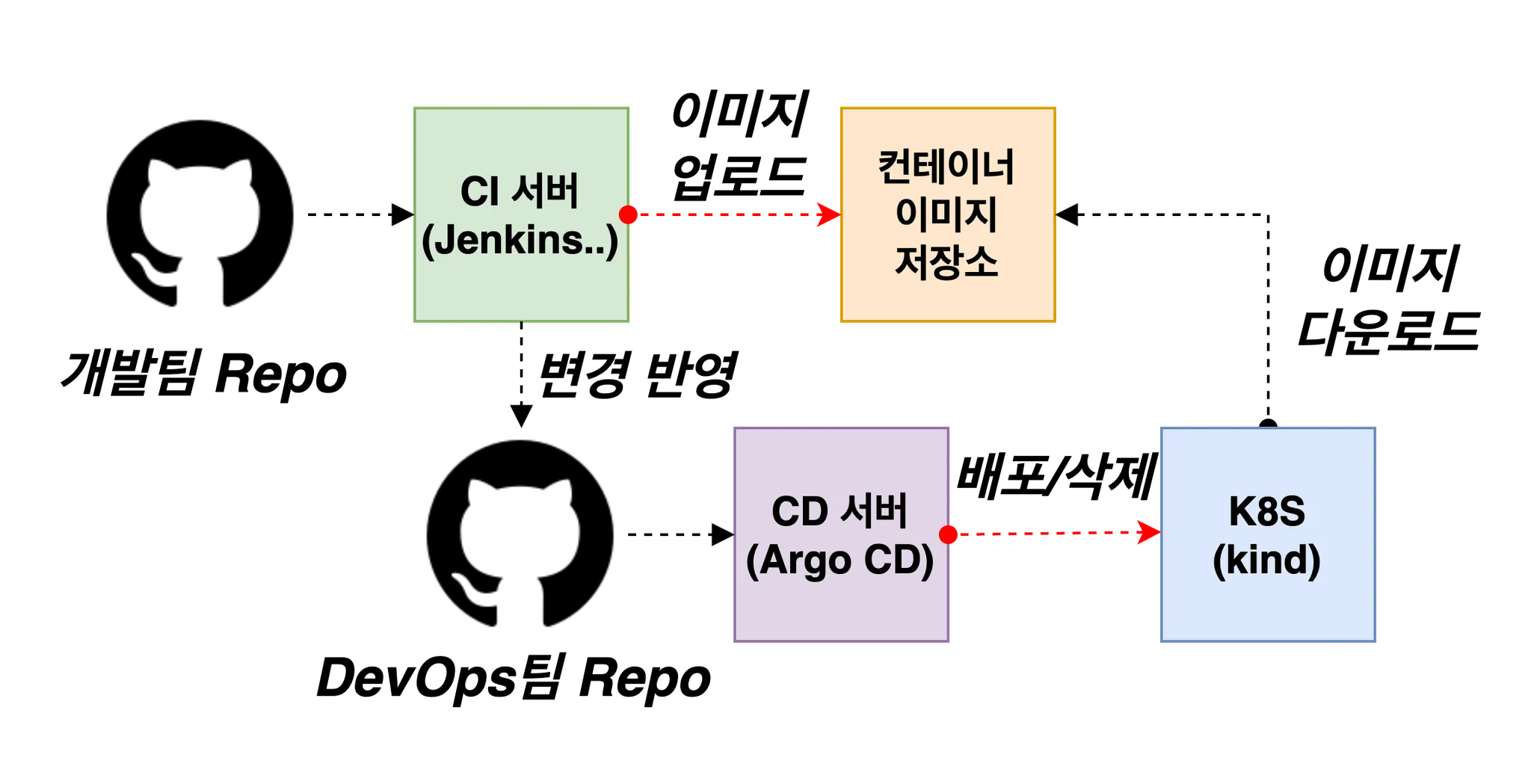
Figure 1.1 목표 구성도 확인
구성하기 위해 직접 실습해보겠습니다.
mkdir -p /mnt/data/jenkins
chown 1000:1000 /mnt/data/jenkins

kind create cluster --name myk8s --image kindest/node:v1.32.8 --config - <<EOF
kind: Cluster
apiVersion: kind.x-k8s.io/v1alpha4
networking:
  apiServerAddress: "0.0.0.0"
nodes:
- role: control-plane
  extraMounts:
    - hostPath: /mnt/data/jenkins
      containerPath: /mnt/data/jenkins
    - hostPath: /var/run/docker.sock
      containerPath: /var/run/docker.sock
  extraPortMappings:
  - containerPort: 30000
    hostPort: 30000
  - containerPort: 30001
    hostPort: 30001
  - containerPort: 30002
    hostPort: 30002
  - containerPort: 30003
    hostPort: 30003
  - containerPort: 30004
    hostPort: 30004
- role: worker
  extraMounts:
    - hostPath: /mnt/data/jenkins
      containerPath: /mnt/data/jenkins
    - hostPath: /var/run/docker.sock
      containerPath: /var/run/docker.sock
EOF

ifconfig
# eth0: flags=4163<UP,BROADCAST,RUNNING,MULTICAST>  mtu 1500
#         inet 172.20.159.236  netmask 255.255.240.0  broadcast 172.20.159.255

cat ~/.kube/config
# ...
# server: https://0.0.0.0:43059
# ...

# k8s 통신 확인
curl -k https://172.20.159.236:43059/version


# Helm 을 이용한 Jenkins 설치


kubectl create ns jenkins

# PVC 생성
cat <<EOF | kubectl apply -f -
apiVersion: v1
kind: PersistentVolume
metadata:
  name: jenkins-pv
  labels:
    type: local
spec:
  storageClassName: ""
  capacity:
    storage: 10Gi
  accessModes:
    - ReadWriteOnce
  hostPath:
    path: "/mnt/data/jenkins"
---
apiVersion: v1
kind: PersistentVolumeClaim
metadata:
  name: jenkins-pvc
  namespace: jenkins
spec:
  storageClassName: ""
  accessModes:
    - ReadWriteOnce
  resources:
    requests:
      storage: 10Gi
EOF


helm repo add jenkins https://charts.jenkins.io
helm repo update

helm upgrade jenkins jenkins/jenkins \
  --namespace jenkins \
  --create-namespace \
  --set controller.serviceType=NodePort \
  --set controller.nodePort=30004 \
  --set persistence.enabled=true \
  --set persistence.existingClaim=jenkins-pvc \
  --set controller.volumes[0].name=docker-sock \
  --set controller.volumes[0].hostPath.path=/var/run/docker.sock \
  --set controller.containerVolumeMounts[0].name=docker-sock \
  --set controller.containerVolumeMounts[0].mountPath=/var/run/docker.sock

# Admin 비밀번호 확인
kubectl exec --namespace jenkins -it svc/jenkins -c jenkins -- /bin/cat /run/secrets/additional/chart-admin-password && echo

# Web UI 접속
wslview http://127.0.0.1:30004
Figure 1.2 Jenkins UI 접속
Docker나 Package Manager로 설치하는 방식과는 달리, Helm 으로 설치를 하게되면 기본적으로 SetUp Wizard가 Disabled 되어 있습니다.
설치 후 개발팀용, Repository와 ops-deploy Repository를 생성합니다.

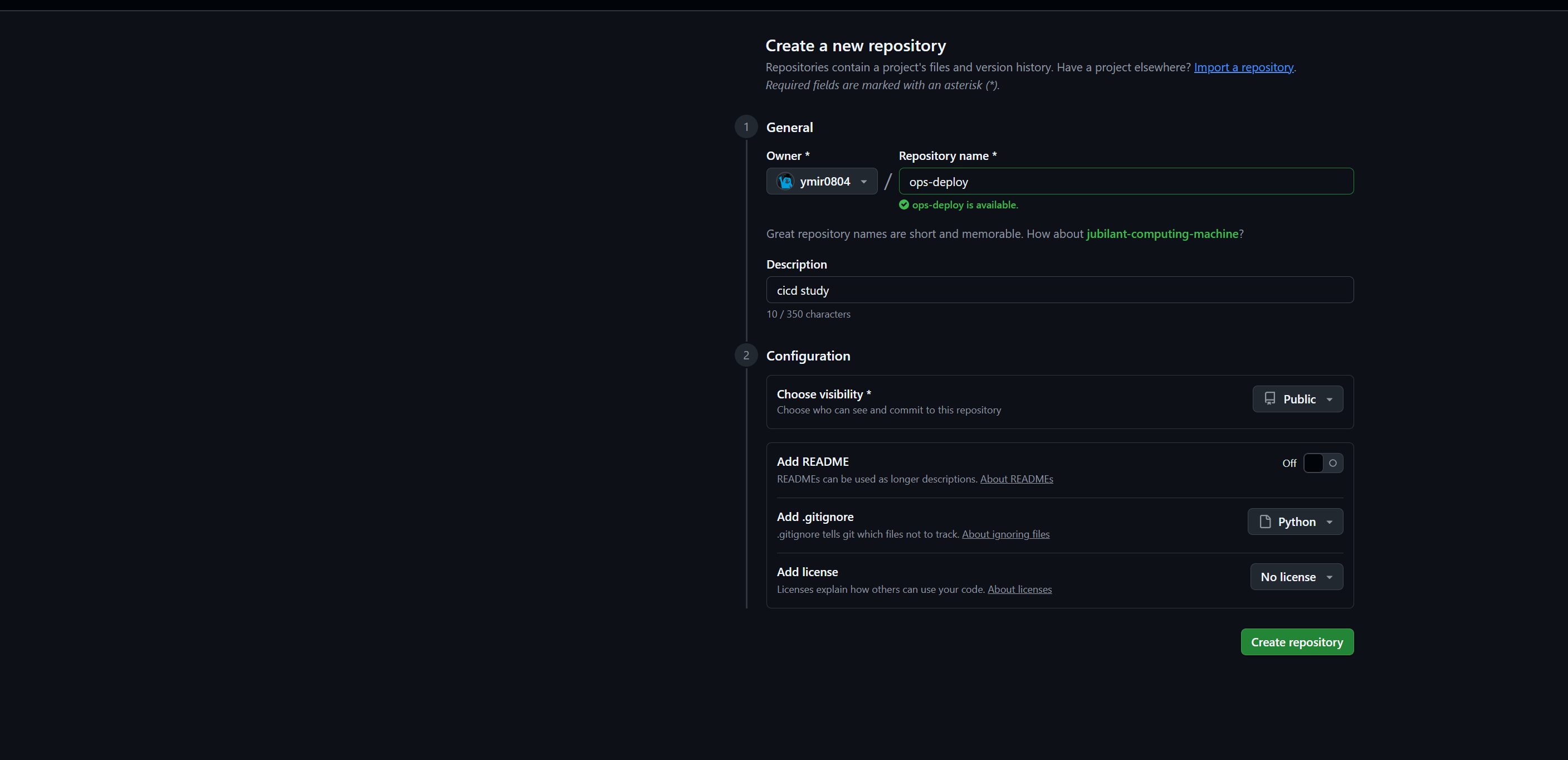
Figure 1.3 Repository 생성
TOKEN=<각자 GitHub Token>
MyID=ymir0804

git clone https://$MyID$:$TOKEN@github.com/$MyID/dev-app.git
git config --local user.name "$MyID"
git config --local user.email "$MyEmail"
git config --local init.defaultBranch main
git config --local credential.helper store
git --no-pager config --local --list


# server.py 파일 작성
cat > server.py <<EOF
from http.server import ThreadingHTTPServer, BaseHTTPRequestHandler
from datetime import datetime
import socket

class RequestHandler(BaseHTTPRequestHandler):
    def do_GET(self):
        match self.path:
            case '/':
                now = datetime.now()
                hostname = socket.gethostname()
                response_string = now.strftime("The time is %-I:%M:%S %p, VERSION 0.0.1\n")
                response_string += f"Server hostname: {hostname}\n"
                self.respond_with(200, response_string)
            case '/healthz':
                self.respond_with(200, "Healthy")
            case _:
                self.respond_with(404, "Not Found")

    def respond_with(self, status_code: int, content: str) -> None:
        self.send_response(status_code)
        self.send_header('Content-type', 'text/plain')
        self.end_headers()
        self.wfile.write(bytes(content, "utf-8"))

def startServer():
    try:
        server = ThreadingHTTPServer(('', 80), RequestHandler)
        print("Listening on " + ":".join(map(str, server.server_address)))
        server.serve_forever()
    except KeyboardInterrupt:
        server.shutdown()

if __name__== "__main__":
    startServer()
EOF


# Dockerfile 생성
cat > Dockerfile <<EOF
FROM python:3.12
ENV PYTHONUNBUFFERED 1
COPY . /app
WORKDIR /app
CMD python3 server.py
EOF

# VERSION 파일 생성
echo "0.0.1" > VERSION

# push
git add .
git commit -m "Add dev-app"
git push -u origin main
2. Jenkins
✅ Jenkins 소개
Jenkins(젠킨스)는 소프트웨어 개발 과정에서 빌드, 테스트, 배포와 같은 반복적인 작업을 자동화하여, 지속적 통합(CI, Continuous Integration)과 지속적 배포(CD, Continuous Delivery/Deployment)를 구현하는 데 사용되는 오픈소스 자동화 서버입니다. Java로 개발되었으며, 전 세계적으로 가장 널리 사용되는 CI/CD 도구 중 하나입니다
Plugin 설치
실습을 위해 필요한 Plugin들을 설치해보겠습니다.


Figure 2.1 Plugin 설치
자격증명 설정
저희는 github Repository와 github Registry를 사용하기 때문에, Credential에 정보를 다음과 같이 추가합니다.
http://127.0.0.1:30004/manage/credentials/store/system/domain/_/ URL에 접속 후 설정을 다음과 같이 진행합니다.
생성 시 반드시 Password에 Github Token값을 입력합니다.

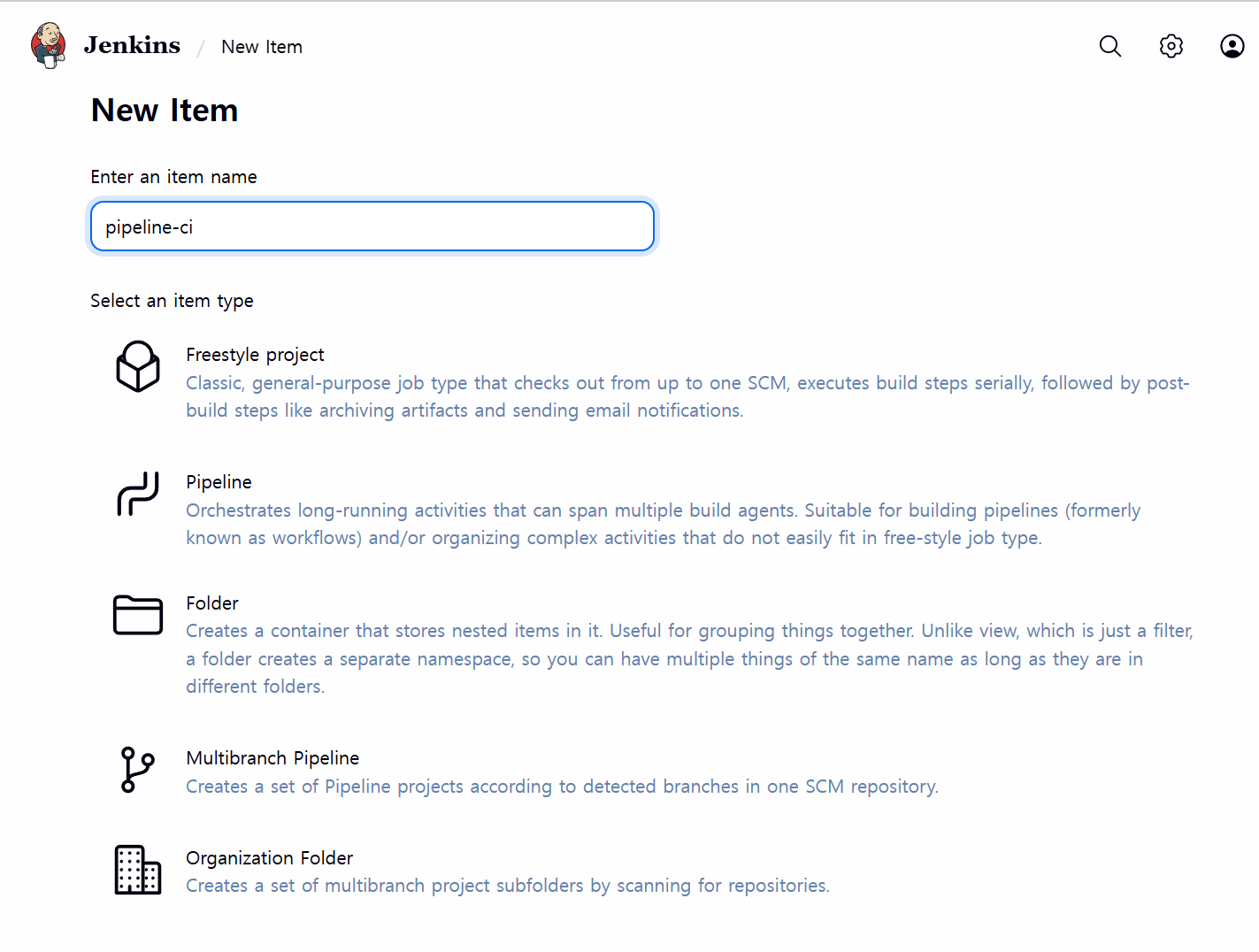

Figure 2.2 자격증명 및 pipeline 생성


Figure 2.3 Cloud > Kubernetes > Pod Template 수정
pipeline 구성
pipeline 구성 시 pipelie script from SCM으로 적용하여, Repository에 존재하는 Jenkinsfile을 적용해서 파이프라인을 구축합니다.

Figure 2.4 pipelie script from
cat <<EOF > Jenkinsfile
pipeline {
    agent any
    environment {
        DOCKER_IMAGE = 'ghcr.io/ymir0804/dev-app' // Docker 이미지 이름
    }
    stages {
        stage('Checkout') {
            steps {
                 git branch: 'main',
                 url: 'https://github.com/ymir0804/dev-app.git',
                 credentialsId: 'ymir0804'
            }
        }
        stage('Read VERSION') {
            steps {
                script {
                    // Git Short SHA 가져오기
                    def shortSha = sh(script: 'git rev-parse --short HEAD', returnStdout: true).trim()
                    echo "Git short SHA: ${shortSha}"
                    env.DOCKER_TAG = shortSha
                }
            }
        }
        stage('Docker Build and Push') {
            steps {
                script {
                    docker.withRegistry('https://ghcr.io', 'ymir0804') {
                        def customImage = docker.build("${DOCKER_IMAGE}:${DOCKER_TAG}", ".")
                        customImage.push()
                        customImage.push('latest')
                    }
                }
            }
        }
    }
    post {
        success {
            echo "Docker image ${DOCKER_IMAGE}:${DOCKER_TAG} has been built and pushed successfully!"
        }
        failure {
            echo "Pipeline failed. Please check the logs."
        }
    }
}
EOF

git add .
git commit -m "Add Jenkinsfile"
git push -u origin main
3. ArgoCD
✅ ArgoCD 소개
ArgoCD는 쿠버네티스(Kubernetes) 환경을 위한 GitOps 기반의 지속적 배포(Continuous Delivery) 도구입니다. Git 저장소를 단일 진실 공급원(Single Source of Truth)으로 사용하여, 애플리케이션의 배포 및 관리 상태를 선언적으로 정의하고 클러스터에 자동으로 동기화하는 역할을 수행하는 도구입니다.
핵심은 애플리케이션의 상태(버전, 구성 등)를 Git에 코드로 관리하고, ArgoCD가 이 Git의 상태와 실제 쿠버네티스 클러스터의 상태를 지속적으로 비교하여 일치시키는 것 입니다.

Figure 3.1 ArgoCD 작동 구조
크게 API, Repository Service, Application Controller 이 세가지로 구성돼있습니다.
API Server는 Web UI 대시보드, k8s api 처럼 API 서버 역할을 수행 합니다.
Repository Server는 Git 연결 및 배포할 yaml 생성 역할을 수행 합니다.
Application Controller는 k8s 리소스 모니터링 및 Git과 비교하여 Application의 형상을 맞추는 역할을 수행 합니다.
실습 환경 구성
kubectl create ns argocd
cat <<EOF > argocd-values.yaml
dex:
  enabled: false

server:
  service:
    type: NodePort
    nodePortHttps: 30002
  extraArgs:
    - --insecure  # HTTPS 대신 HTTP 사용
EOF


# 설치 : Argo CD v3.1.9
helm repo add argo https://argoproj.github.io/argo-helm
helm install argocd argo/argo-cd --version 9.0.5 -f argocd-values.yaml --namespace argocd

kubectl get crd | grep argo
# applications.argoproj.io      2025-11-01T17:28:24Z
# applicationsets.argoproj.io   2025-11-01T17:28:24Z
# appprojects.argoproj.io       2025-11-01T17:28:24Z

# 최초 접속 암호 확인
kubectl -n argocd get secret argocd-initial-admin-secret -o jsonpath="{.data.password}" | base64 -d ;echo

wslview http://127.0.0.1:30002

Figure 3.2 User Info Tab에서 비밀번호 변경
처음에 생성한 ops-deploy Repository를 Settings → Repositories → CONNECT REPO를 통해 연결해보겠습니다.
옵션은 다음과 같습니다.
    - connection method : VIA HTTPS
    - Type : git
    - Project : default
    - Repo URL : https://github.com/ymir0804/ops-deploy.git
    - Username : ymir0804
    - Password : <Github 토큰>

Figure 3.3 Repository 연결
ops-deploy Repository에 nginx helm chart 를 Argo CD를 통한 배포
cd ~/cicd-labs
git clone https://$MyID$:$TOKEN@github.com/$MyID/ops-deploy.git
cd ops-deploy
git config --local user.name "ymir0804"
git config --local user.email "duswn916@knou.ac.kr"
git config --local init.defaultBranch main
git config --local credential.helper store
git --no-pager config --local --list

VERSION=1.26.1
mkdir nginx-chart
mkdir nginx-chart/templates

cat > nginx-chart/VERSION <<EOF
$VERSION
EOF

cat > nginx-chart/templates/configmap.yaml <<EOF
apiVersion: v1
kind: ConfigMap
metadata:
  name: {{ .Release.Name }}
data:
  index.html: |
{{ .Values.indexHtml | indent 4 }}
EOF

cat > nginx-chart/templates/deployment.yaml <<EOF
apiVersion: apps/v1
kind: Deployment
metadata:
  name: {{ .Release.Name }}
spec:
  replicas: {{ .Values.replicaCount }}
  selector:
    matchLabels:
      app: {{ .Release.Name }}
  template:
    metadata:
      labels:
        app: {{ .Release.Name }}
    spec:
      containers:
      - name: nginx
        image: {{ .Values.image.repository }}:{{ .Values.image.tag }}
        ports:
        - containerPort: 80
        volumeMounts:
        - name: index-html
          mountPath: /usr/share/nginx/html/index.html
          subPath: index.html
      volumes:
      - name: index-html
        configMap:
          name: {{ .Release.Name }}
EOF

cat > nginx-chart/templates/service.yaml <<EOF
apiVersion: v1
kind: Service
metadata:
  name: {{ .Release.Name }}
spec:
  selector:
    app: {{ .Release.Name }}
  ports:
  - protocol: TCP
    port: 80
    targetPort: 80
    nodePort: 30000
  type: NodePort
EOF

cat > nginx-chart/values-dev.yaml <<EOF
indexHtml: |
  <!DOCTYPE html>
  <html>
  <head>
    <title>Welcome to Nginx!</title>
  </head>
  <body>
    <h1>Hello, Kubernetes!</h1>
    <p>DEV : Nginx version $VERSION</p>
  </body>
  </html>

image:
  repository: nginx
  tag: $VERSION

replicaCount: 1
EOF

cat > nginx-chart/values-prd.yaml <<EOF
indexHtml: |
  <!DOCTYPE html>
  <html>
  <head>
    <title>Welcome to Nginx!</title>
  </head>
  <body>
    <h1>Hello, Kubernetes!</h1>
    <p>PRD : Nginx version $VERSION</p>
  </body>
  </html>

image:
  repository: nginx
  tag: $VERSION

replicaCount: 2
EOF

cat > nginx-chart/Chart.yaml <<EOF
apiVersion: v2
name: nginx-chart
description: A Helm chart for deploying Nginx with custom index.html
type: application
version: 1.0.0
appVersion: "$VERSION"
EOF

# git push
git status && git add . && git commit -m "Add nginx helm chart" && git push -u origin main

cat <<EOF | kubectl apply -f -
apiVersion: argoproj.io/v1alpha1
kind: Application
metadata:
  # App Name: dev-nginx
  name: dev-nginx
  # ArgoCD의 모든 Application은 argocd 네임스페이스에 생성되어야 합니다.
  namespace: argocd
spec:
  # Project Name: default
  project: default

  # Source: 애플리케이션 소스 코드 정보
  source:
    repoURL: 'https://github.com/ymir0804/ops-deploy.git'
    # PATH: nginx-chart
    path: nginx-chart
    # Revision: HEAD
    targetRevision: HEAD
    # HELM
    helm:
      # Values files: values-dev.yaml
      valueFiles:
        - values-dev.yaml

  # Destination: 애플리케이션이 배포될 클러스터 정보
  destination:
    # Cluster URL: <기본값> - ArgoCD가 설치된 클러스터를 의미
    server: 'https://kubernetes.default.svc'
    # NAMESPACE: dev-nginx
    namespace: dev-nginx

  # SYNC POLICY
  syncPolicy:
    # SYNC POLICY: Manual -> automated 필드가 없거나 비어 있으면 Manual
    automated: null

    # SYNC OPTIONS
    syncOptions:
      # AUTO-CREATE NAMESPACE: 클러스터에 네임스페이스가 없을 시 자동 생성
      - CreateNamespace=true
      # APPLY OUT OF SYNC ONLY: 현재 동기화 상태가 아닌 리소스만 배포
      - ApplyOutOfSyncOnly=true
EOF


Figure 3.4 WebUI에서 확인
Sync Policy의 필드값이 없기 때문에 Autmoated가 아닌 Manual이 적용되어있습니다.
이때 UI에서 Sync를 클릭하면 배포가 시작됩니다.


Figure 3.5 배포 확인
GitOps Repository를 수정하지 않고 직접 수정하게되면 Live Manifest에는 적용이 돼있찌만, Desired Manifest(Git에 저장되어있는 설정 정보)와 다른 것을 확인 할 수 있습니다.
ArgoCD는 반드시 단일 진실 공급원(Single Source Of Truth, SSOT)를 통해서 관리하기 때문에, 수동 수정을 권장하지 않습니다.
kubectl label cm dev-nginx -n dev-nginx study=aews

Figure 3.6 강제 수정 확인
강제 수정한 내용을 이번에는 Git에 push하여 수정 해보겠습니다.
VERSION=1.26.2

cat > nginx-chart/VERSION <<EOF
$VERSION
EOF

cat > nginx-chart/values-dev.yaml <<EOF
indexHtml: |
  <!DOCTYPE html>
  <html>
  <head>
    <title>Welcome to Nginx!</title>
  </head>
  <body>
    <h1>Hello, Kubernetes!</h1>
    <p>DEV : Nginx version $VERSION</p>
  </body>
  </html>

image:
  repository: nginx
  tag: $VERSION

replicaCount: 2
EOF

cat > nginx-chart/values-prd.yaml <<EOF
indexHtml: |
  <!DOCTYPE html>
  <html>
  <head>
    <title>Welcome to Nginx!</title>
  </head>
  <body>
    <h1>Hello, Kubernetes!</h1>
    <p>PRD : Nginx version $VERSION</p>
  </body>
  </html>

image:
  repository: nginx
  tag: $VERSION

replicaCount: 2
EOF

cat > nginx-chart/Chart.yaml <<EOF
apiVersion: v2
name: nginx-chart
description: A Helm chart for deploying Nginx with custom index.html
type: application
version: 1.0.0
appVersion: "$VERSION"
EOF

#
git status && git add . && git commit -m "Update nginx version $(cat nginx-chart/VERSION)" && git push -u origin main

Figure 3.7 변경 감지 확인
생성한 Application을 삭제 해보겠습니다.
kubectl delete applications.argoproj.io dev-nginx -n argocd'DevOps > Study' 카테고리의 다른 글
| CI/CD Study 4주차 ArgoCD 1/3 (2) (0) | 2025.11.08 |
|---|---|
| CI/CD Study 4주차 ArgoCD 1/3 (1) (0) | 2025.11.08 |
| CI/CD Study 2주차 Cloud Native CI/CD (1) | 2025.10.26 |
| CI/CD Study 2주차 Helm (0) | 2025.10.26 |
| CI/CD Study 1주차 Image Build (0) | 2025.10.19 |