CI/CD Study 1주차 Image Build
가시다님이 운영하시는 CI/CD Study 1주차 내용을 정리한 게시글 입니다.
1. 소개
✅ GitOps 란?
Git 저장소를 단일 소스(Sigle Source of Truth)로 사용하여 인프라를 코드로 재공하는 패턴 입니다.
OpenGitOps라는 CNCF SIG 산하 워킹 그룹에서도 GitOps 원칙을 적용하고 있는데 내용은 다음과 같습니다.
- GitOps로 관리되는 시스템은 원하는 상태를 선언적으로 표현할 것
- 상태 관리 시 불변성 원칙과 버전 관리 방법론을 적용 하여, 버전 변경 이력을 완벽히 유지할 것
- 배포 환경에 설치된 SW Agent의 상태에 대한 선언적 표현을 Git 저장소에서 자동으로 끌어올 것
- SW Agent는 실제 시스템 상태를 계쏙 관찰하여 원하는 상태에 맞도록 변경할 것
kubernetes환경에서의 CI/CD
CI(Continuous Integration)/CD(Continuous Delivery)는 앱 개발의 각 단계에 대해 자동화를 도입하여 Application을 자주 배포할 수 있도록 하는 방법론 입니다.
흔히 말하는 CI/CD Pipeline이 GitOps의 가장 일반적인 Use Case입니다.
graph
    subgraph Continuous Delivery
        subgraph Continuous Integration
            Build --> Test --> Security_Checks[Security Checks] --> Release
        end
        Release --> Deploy_Stage[Deploy Stage] --> Deploy_Prod[Deploy Prod]
    end

    classDef lightblue fill:#ADD8E6,stroke:#333;
    classDef darkblue fill:#4682B4,stroke:#333,color:white;

    class Build,Test,Security_Checks,Release lightblue;
    class Deploy_Stage,Deploy_Prod darkblue;
Figure 1.1 일반적인 CI/CD Pipeline 설명
CI 과정에서는 Repository의 코드를 확인하고, CD는 Application의 배포된 경계(dev, stage, prod)를 확인 하고 Application을 배포합니다.
kubernetes cluster 내부에서 CI/CD 파이프라인을 구성 시 VM이나 On-premise 환경에서의 CI/CD 파이프라인 구성을 쉽게 구현 할 수 있습니다.
CI를 담당하는 SW는 Container Image를 생성해서 Container Image Registry에 저장합니다.
그 후 Git WorkFlow를 적용하여 배포할 Application의 명세서(Ex Helm ,Kustomize file)
을 변경하여 CD 동기화 작업을 수행 합니다.
kubernetes에서 GitOps 패턴을 적용하려면 Application Repository와 Application의 명세서를 저장하는 Repository가 필요합니다.
graph LR
    A["Developer"] -- "Push source code" --> B[Git]
    B -- "Webhook" --> C["Pipelines"]
    C -- "Push" --> D[("Image Registry")]

    A -- "Pull-request<br/>app manifests" --> E["Git "]
    F["GitOps engine"] -- "Pull" --> E
    F -- "Sync" --> Kubernetes

    subgraph Kubernetes
        G[Dev]
        H[Prod]
    end

    Kubernetes -- "Pull" --> D

    %% Styling
    classDef dev fill:#d6eaf8,stroke:#2e86c1,color:black;
    classDef ci fill:#d2b4de,stroke:#7d3c98,color:black;
    classDef gitops fill:#fdebd0,stroke:#af601a,color:black;
    classDef git fill:#f5b7b1,stroke:#c0392b,color:black;
    classDef registry fill:#aed6f1,stroke:#2471a3,color:black;

    class A dev;
    class C ci;
    class F gitops;
    class B,E git;
    class D registry;
    class G,H dev;
Figure 1.2 kubenetes환경에서의 CI/CD Pipeline
2. 실습 준비
실습을 하기 위해서는 Docker hub 계정에서 Token 발급이 필요한데, Token 발급 과정은 해당 블로그를 참고하시면 됩니다.
git clone https://github.com/gitops-cookbook/chapterskubernetes는 kind를 이용하여 실습할 예정이며 kind 설치 및 환경 구성도 해당 블로그를 참고하시면 됩니다.
# kind 실습 환경 구성 스크립트
kind create cluster --name myk8s --image kindest/node:v1.32.8 --config - <<EOF
kind: Cluster
apiVersion: kind.x-k8s.io/v1alpha4
nodes:
- role: control-plane
  extraPortMappings:
  - containerPort: 30000
    hostPort: 30000
  - containerPort: 30001
    hostPort: 30001
- role: worker
EOF
3. Container
Container는 Application을 배포를 위해 Packaging 할때 널리 사용되는 표준 형식이며 이 형식은 OCI(Open Container Initiative) 퓨준 중 하나입니다.
OCI Container 표준 개방성은 운영체제, 플랫폼, 클라우드와 무관하게 공통적으로 이식성과 운영성을 보장합니다.
Docker을 이용한 컨테이너 Build
일반적으로 Docker을 이용하여 Container Build를 많이 사용합니다. Docker을 이용하여 Container Build시 Docker Process와 Dockerfile을 이용하여 Packaging 하여 Container Image를 생성합니다.
Dockerfile 란?
Container Image를 생성하기 위해 명령행에서 호출하는 모든 명령을 담은 명세서입니다.
Container Image는 계층 구조로 이루어져있으며, Image는 Layer에 적용된 변경 사항들로 구성되어있습니다.
변경이 발생할 때마다 Layer에 하나씩 추가로 Commit이 추가됩니다.
graph TD
    %% 왼쪽 스택: Container Image Layers
    subgraph CIL [" "]
        L1["Image Layer 3"]
        L2["Image Layer 2"]
        L3["Image Layer 1"]
        L4["Base Image"]
    end

    %% 오른쪽 스택: Example Container Image
    subgraph ECI [" "]
        R1["Application Layer"]
        R2["Java Runtime Layer"]
        R3["OS Update Layer"]
        R4["Base RHEL"]
    end

    %% 수직 계층 연결 정의
    L4 --> L3 --> L2 --> L1
    R4 --> R3 --> R2 --> R1

    %% 두 그룹 사이에 화살표를 생성하기 위한 연결
    L2 -- " " --> R2

    %% 스타일링
    classDef orange fill:#F39C12,stroke:#333,color:white;
    class L1,L2,L3,L4,R1,R2,R3,R4 orange;

    %% 각 그룹의 테두리 스타일 지정
    style CIL stroke-width:0px
    style ECI stroke:#808080,stroke-width:2px,stroke-dasharray:5

    %% 중앙 화살표 스타일 지정 (코드가 렌더링될 때 7번째 링크에 해당)
    linkStyle 6 stroke:grey,stroke-width:10px
Figure 3.1 Docker Image Build 설명
# Dockerfile 확인
cd chapters/chapters/ch03/python-app
cat Dockerfile
MYREGISTRY=docker.io
#MYUSER=<각자 자신의 계정명>
MYUSER=960916
docker build -f Dockerfile -t $MYREGISTRY/$MYUSER/pythonapp:latest .
# FROM registry.access.redhat.com/ubi8/python-39 # 기반 레이어가 되는 이미지 지정. UBI는 RHEL 기반이며 무료.
# ENV PORT 8080
# EXPOSE 8080
# WORKDIR /usr/src/app
# COPY requirements.txt ./
# RUN pip install --no-cache-dir -r requirements.txt
# COPY . .
# ENTRYPOINT ["python"] # 컨테이너 내부의 앱 진입점 entrypoint 정의. 본 예제의 경우 파이썬 인터프리터.
# CMD ["app.py"] # 컨테이너르 시작할 때 사용하는 명령어.
# => [1/5] FROM registry.access.redhat.com/ubi8/python-39:latest@sha256:1f8117d04c016fc6c161d4809e 42.3s
# ... 0.0s
# => [2/5] WORKDIR /usr/src/app 1.5s
# => [3/5] COPY requirements.txt ./ 0.1s
# => [4/5] RUN pip install --no-cache-dir -r requirements.txt 20.0s
# => [5/5] COPY . . Dockerfile에 저장된 명령을 실행할 때마다 Layer를 추가하는 것을 확인할 수 있으며, Layer는 Container Cache나 Docker Cache에 해당하는 Local 저장소에 보관됩니다.
Local 저장소에 없는 경우 새로 생성하며, 존재하는 경우 Cache를 사용하여 Container Image를 Build합니다.
docker history 명령어를 통해서 Image Build시 사용되는 step을 확인할 수 있습니다.
 docker history $MYUSER/pythonapp:latest
# IMAGE          CREATED         CREATED BY                                      SIZE      COMMENT
# 98eaa635f986   6 minutes ago   CMD ["app.py"]                                  0B        buildkit.dockerfile.v0
# <missing>      6 minutes ago   ENTRYPOINT ["python"]                           0B        buildkit.dockerfile.v0
# <missing>      6 minutes ago   COPY . . # buildkit                             24.6kB    buildkit.dockerfile.v0
# <missing>      6 minutes ago   RUN /bin/sh -c pip install --no-cache-dir -r…   5.12MB    buildkit.dockerfile.v0
Base Image와 Docker file에서 사용된 Image Layer를 추적해보면 다음과 같습니다.
docker pull registry.access.redhat.com/ubi8/python-39:latest

docker inspect registry.access.redhat.com/ubi8/python-39:latest | jq

    #   "Layers": [
    #     "sha256:efbb01c414da9dbe80503875585172034d618260b0179622a67440af141ada49",
    #     "sha256:0e770dacd8dd8e0f783addb2f8e2889360ecc1443acc1ca32f03158f8b459b14",
    #     "sha256:03b1af2d2f1752f587c99bf9afca0a564054b79f46cf22cef211f86f1d4a4497",
    #     "sha256:ae81327beceb885cbdb2663e2f89e6e55aaa614f5ce2d502f772420d6fe37f2f"
    #   ]

docker inspect $MYUSER/pythonapp:latest | jq
    #   "Layers": [
    #     "sha256:efbb01c414da9dbe80503875585172034d618260b0179622a67440af141ada49",
    #     "sha256:0e770dacd8dd8e0f783addb2f8e2889360ecc1443acc1ca32f03158f8b459b14",
    #     "sha256:03b1af2d2f1752f587c99bf9afca0a564054b79f46cf22cef211f86f1d4a4497",
    #     "sha256:ae81327beceb885cbdb2663e2f89e6e55aaa614f5ce2d502f772420d6fe37f2f",
    #     "sha256:445f9401d7dfbe2be16adaf7ed6938344588c6d15a3aa63cd0e85cba0e9c43c4",
    #     "sha256:91398c798442290d35e8dced5fcac9cd6311a1d97393bd6155e3565ec1f57e34",
    #     "sha256:d701481d8f22d347175346d21c0d0634525299012be3cc6e8d537c480c350c1b",
    #     "sha256:df88bbcea2238a829c90aa0b6d5cbe307ecd79b257c0a4ac0a8d9bbc687699ce"
    #   ]
추가된 Layer를 통해 Dockerfile에서 추가된 작업이 수행된 것을 알 수 있습니다.
Docker hub Repository에 login 후 Push를 하겠습니다.
# docker hub Repostiroy에 Login
docker login $MYREGISTRY

# USING WEB-BASED LOGIN

# i Info → To sign in with credentials on the command line, use 'docker login -u <username>'


# Your one-time device confirmation code is: OTP-CODE

# Press ENTER to open your browser or submit your device code here: https://login.docker.com/activate

# Waiting for authentication in the browser…

# Login Succeeded
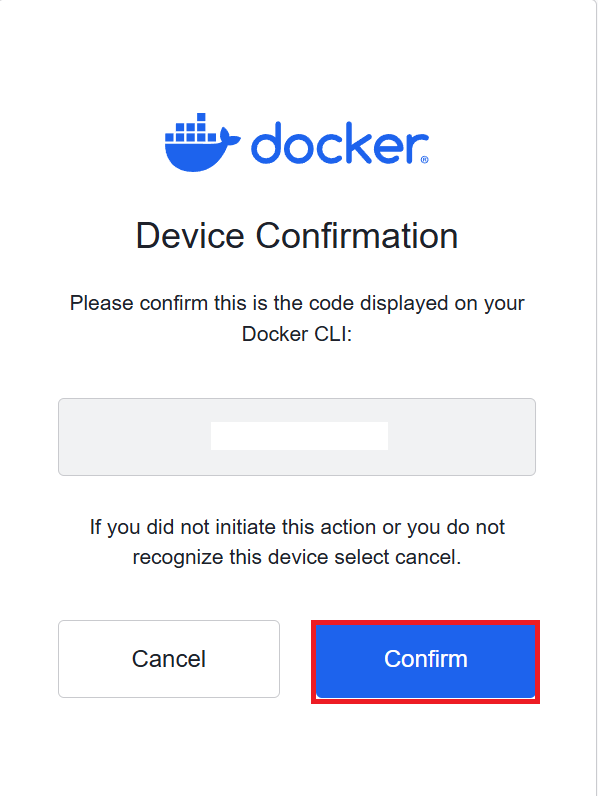
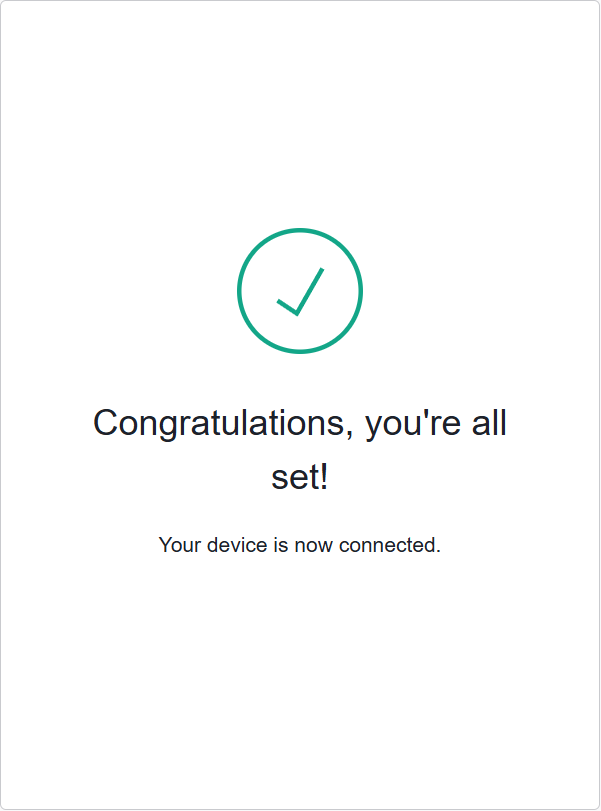

Figure 3.2 Docker hub login
Confirm을 클릭하면 다음과 같이 화면이 변경되면서 기한이 무제한인 Token이 생성됩니다.
docker push $MYREGISTRY/$MYUSER/pythonapp:latest
배포된 Container Image로 Container를 실행해 보겠습니다.
# 공개 레지스트리에 이미지로 컨테이너 실행
docker run -d --name myweb -p 8080:8080 -it $MYREGISTRY/$MYUSER/pythonapp:latest

# 확인
docker ps
# CONTAINER ID   IMAGE                     COMMAND                  CREATED             STATUS             PORTS                                                             NAMES
# e6e7549a482e   960916/pythonapp:latest   "python app.py"          19 seconds ago      Up 19 seconds      0.0.0.0:8080->8080/tcp, [::]:8080->8080/tcp                       myweb


# 접속 후 로그 확인
curl 127.0.0.1:8080
# Hello, World!
docker logs myweb
#  * Serving Flask app 'app'
#  * Debug mode: on
# WARNING: This is a development server. Do not use it in a production deployment. Use a production WSGI server instead.
#  * Running on all addresses (0.0.0.0)
#  * Running on http://127.0.0.1:8080
#  * Running on http://172.17.0.2:8080
# Press CTRL+C to quit
#  * Restarting with stat
#  * Debugger is active!
#  * Debugger PIN: 953-557-346
# 172.17.0.1 - - [18/Oct/2025 14:10:19] "GET / HTTP/1.1" 200 -
# 다음 실습을 위해 실행 중인 컨테이너 삭제
docker rm -f myweb
Jib을 이용한 Java Container Build
Jib은 Dockerfile이나 Docker Daemon 필요 없이 Container Image를 빌드하는 도구입니다.
Jib은 Maven, Gradle Plugin으로 사용해서 Build를 하며, Application을 Container Image로 패키징하는 모든 단계를 처리합니다.
JVM 기반의 Application에서만 사용 가능한 단점이 있습니다.
kind로 구축한 kubernetes cluster에서 실습을 진행해보겠습니다.
docker exec -it myk8s-worker bash
# openjdk 설치
apt update
mkdir -p /usr/share/man/man1
apt install perl-modules-5.36 -y
apt install openjdk-17-jdk -y

# maven 설치
apt install maven -y

# 툴 설치
apt install git tree wget curl jq -y

# 소스 코드 가져오기
git clone https://github.com/gitops-cookbook/chapters
cd /chapters/chapters/ch03/springboot-app/

# Jib을 이용한 Container Image Build 및 Push
MY_TOKEN=생성한 TOKEN값
MY_USER=DOCKER 계정명
mvn compile com.google.cloud.tools:jib-maven-plugin:3.4.6:build \
  -Dimage=docker.io/$MY_USER/jib-example:latest \
  -Djib.to.auth.username=$MY_USER \
  -Djib.to.auth.password=$MY_TOKEN \
  -Djib.from.platforms=linux/amd64

# [INFO] Scanning for projects...
# [INFO]
# [INFO] --------------------------< com.redhat:hello >--------------------------
# [INFO] Building hello 0.0.1-SNAPSHOT
# [INFO] --------------------------------[ jar ]---------------------------------
# [INFO] Built and pushed image as 960916/jib-example
# [INFO] Executing tasks:
# [INFO] [==============================] 100.0% complete
# [INFO]
# [INFO] ------------------------------------------------------------------------
# [INFO] BUILD SUCCESS
# [INFO] ------------------------------------------------------------------------
# [INFO] Total time:  22.612 s
# [INFO] Finished at: 2025-10-18T14:38:22Z
# [INFO] ------------------------------------------------------------------------

Figure 3.3 Jib을 이용한 Container image build & Push 확인
Build 한 Container Image 작동 확인해보겠습니다.
# 컨테이너 기동
docker run -d --name myweb2 -p 8080:8080 -it docker.io/gasida/jib-example

# 호출 확인
curl -s 127.0.0.1:8080/hello | jq

# {
#   "id": 1,
#   "content": "Hello, World!"
# }

# 다음 실습을 위해 컨테이너 삭제
docker rm -f myweb2
Builda를 이용한 Container Build
도커는 컨테이너 이미지 생성, 실행, 배포를 위해 단일 모노리스 monolith 애플리케이션을 사용하지만, Builda 리눅스 커널의 컨테이너 네이티브 기능(namespace, cgroups 등)에 의존하여, 리눅스 하위 시스템에서 사용 가능하기 때문에 Mac, Window환경에서는 사용할 수 없습니다.
주로 Podman과 많이 비교가 되는데, Podman은 Container을 유지보수를 위한 명령어 및 기능에 특화되어이씾만, Builda는 이미지 Build에 특화되어있습니다.
Builda는 Root 권한이나 Daemmon이 필요 없으며, Jib과 동일하게 Dockerfile없이 Container Image Build를 제공합니다.
Builda를 이용한 이미지 빌드 실습을 진행해 보겠습니다.
docker exec -it myk8s-control-plane bash
apt update
mkdir -p /usr/share/man/man1
# podman 설치 시 Builda도 같이 설치 됨
apt install podman -y

# builda 설치 확인
buildah version

# Version:         1.28.2
# Go Version:      go1.19.8
# Image Spec:      1.1.0-rc2
# Runtime Spec:    1.0.2-dev
# CNI Spec:        1.0.0
# libcni Version:
# image Version:   5.23.1
# Git Commit:
# Built:           Thu Jan  1 00:00:00 1970
# OS/Arch:         linux/amd64
# BuildPlatform:   linux/amd64

buildah from centos:latest

# Build 전용 Container Image 확인
buildah containers
# CONTAINER ID  BUILDER  IMAGE ID     IMAGE NAME                       CONTAINER NAME
# 46f62003a2be     *     4fbde73dcc66 quay.io/centos/centos:latest     centos-working-container

# Build 전용 Container를 이용하여 Image Layer생성

buildah run centos-working-container yum install httpd -y

# index.html 파일 작성
cat << EOF > index.html
<html>
    <head>
        <title>Cloudneta CICD Study</title>
    </head>
    <body>
        <h1>Hello, World!</h1>
    </body>
</html>
EOF

# 새 레이어에 파일 추가
buildah copy centos-working-container index.html /var/www/html/index.html


# 다음 명령으로 이미지 생성 마무리
buildah config --entrypoint "/usr/sbin/httpd -DFOREGROUND" centos-working-container
buildah commit centos-working-container docker.io/$MY_USER/gitops-website

# podman 으로 실행해보기
podman run --runtime /usr/local/sbin/runc -d --name myweb -p 8080:80 -it docker.io/$MY_USER/gitops-website

# 확인
podman ps
curl -s 127.0.0.1:8080
# <html>
#     <head>
#         <title>Cloudneta CICD Study</title>
#     </head>
#     <body>
#         <h1>Hello, World!</h1>
#     </body>
# </html>

# 다음 실습을 위해 컨테이너 삭제
podman rm -f myweb

# 저장소 로그인
buildah login --username
$MY_USER docker.io
# 저장소 push
buildah push  docker.io/$MY_USER/gitops-website
Dockerfile을 이용해서도 Build를 할 수 있는데, Build방식은 다음과 같습니다.
cat << EOF > Dockerfile
FROM centos:latest
RUN yum -y install httpd
COPY index.html /var/www/html/index.html
EXPOSE 80
CMD ["/usr/sbin/httpd", "-DFOREGROUND"]
EOF

#
buildah build -f Dockerfile -t docker.io/$MY_USER/gitops-website
Buildpacks 을 통한 컨테이너 빌드
BuildPacks을 통해서도 Dockerfile 없이 Container Image를 Build할 수 있는데 Application 코드를 검사해서 Container Image를 Build할 수 있습니다.
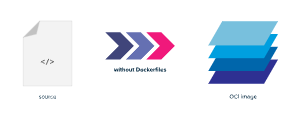
Figure 3.4 BuildPacks의 사상
BuildPacks의 사상을 구현하기 위해 탐지, 빌드라는 단계로 구현돼있습니다.
탐지단계는 빌드팩은 소스 코드를 탐색하여 어떤 프로그래밍 언어 또는 프레임워크가 사용되는지 파악하고 해당 소스 코드 빌드에 가장 적합한 빌드팩을 선정하는 단계입니다.
빌드 단계는 빌드팩이 결정되면 소스는 컴파일 되고 적절한 EntryPoint와 Startup sciprt가 포함된 컨테이너 이미지를 만드는 단계입니다.
Figure 3.5 BuildPacks 단계 설명
설치를 하여 직접 실습을 진행해보겠습니다.
sudo add-apt-repository ppa:cncf-buildpacks/pack-cli
sudo apt-get update
sudo apt-get install pack-cli -y

cd chapters/chapters/ch03/nodejs-app/


## 이 빌드에 필요한 Node.js 패키지를 나열하는 매니페스트 파일 확인
cat package.json | jq

pack build nodejs-app --builder paketobuildpacks/builder-jammy-base


# 컨테이너 실행
docker run -d --name myapp --rm -p 3000:3000 nodejs-app
curl -s 127.0.0.1:3000
# Hello Buildpacks!
docker rm -f myapp
Shipwrite 와 빌다 Buildah 를 사용한 쿠버네티스 기반 컨테이너 빌드
Shipwrite 는 쿠버네티스에서 컨테이너 이미지를 빌드하는 확장 가능 프레임워크입니다.
Buildah, Buildpacks과 같은 도구들도 지원합니다.
Kubenetes 스타일 API를 사용하여 Tekton위에서 작업을 수행합니다.
특정 솔루션에 종속되지 않아 Kubernetes API EchoSystem과 잘 어울립니다.
ShipWrite를 직접 실습을 수행해보겠습니다.
# Tekton dependency 파이프라인(pipeline) 설치
kubectl apply -f https://storage.googleapis.com/tekton-releases/pipeline/previous/v0.70.0/release.yaml

# Shipwright Builds Directly 설치
kubectl apply -f https://github.com/shipwright-io/build/releases/download/v0.11.0/release.yaml

# Shipwright build strategies 빌드 전략 설치
kubectl apply -f https://github.com/shipwright-io/build/releases/download/v0.11.0/sample-strategies.yaml


# CRD를 통해 제공되는 Shipwrite API 확인
# NAME                     AGE
# buildah                  2m26s
# buildkit                 2m26s
# buildpacks-v3            2m26s
# buildpacks-v3-heroku     2m26s
# kaniko                   2m26s
# kaniko-trivy             2m26s
# ko                       2m26s
# source-to-image          2m26s
# source-to-image-redhat   2m26s

# Shipwrite 는 Kubernetes Node의 Container Cache의 Container Image를 생성하고, Container Registry로 Push를 수행합니다.

REGISTRY_SERVER=https://index.docker.io/v1/ # or quay.io
REGISTRY_USER=<your_registry_user>
REGISTRY_PASSWORD=<your_registry_password>
EMAIL=<your_email>


# 시크릿 생성
kubectl create secret docker-registry push-secret \
--docker-server=$REGISTRY_SERVER \
--docker-username=$REGISTRY_USER \
--docker-password=$REGISTRY_PASSWORD \
--docker-email=$EMAIL

# Build 객체 생성
cat <<EOF | kubectl apply -f -
apiVersion: shipwright.io/v1alpha1
kind: Build
metadata:
  name: kaniko-golang-build
spec:
  source:
    url: https://github.com/shipwright-io/sample-go  # 소스 코드를 가져올 저장소
    contextDir: source-build                        # 소스 코드가 있는 디렉터리
  strategy:
    name: buildah                                     # 빌드에 사용할 ClusterBuildStrategy 이름
    kind: ClusterBuildStrategy
  dockerfile: Dockerfile
  output:
    image: docker.io/$REGISTRY_USER/sample-golang:latest # 결과 이미지를 저장할 장소
    credentials:
      name: push-secret                              # 레지스트리에 인증하고 이미지를 푸시하는 데 사용할 시크릿 이름
EOF

# 파일 작성
cat << EOF > buildrun-go.yaml
apiVersion: shipwright.io/v1alpha1
kind: BuildRun
metadata:
  generateName: kaniko-golang-buildrun-
spec:
  buildRef:
    name: kaniko-golang-build
EOF

# 빌드 수행
kubectl create -f buildrun-go.yaml
4. Kustomize
✅ Kustomize 란?
Kustomize는 쿠버네티스(Kubernetes) 설정을 원본 YAML 파일을 수정하지 않고, 환경별로 관리할 수 있게 해주는 템플릿 없는(template-free) 구성 관리 도구입니다.
Application을 개발(development), 테스트(QA), 운영(production) 환경에 각각 배포할 때, 대부분의 설정은 동일하지만 일부 값(예: 리소스 할당량, 도메인 주소, 복제본 수)만 다릅니다. 이때 각 환경별로 YAML 파일을 모두 복사해서 관리하면 중복이 많아지고 실수가 발생하기 쉽습니다.
이때 Kustomize는 공통된 설정을 기본(base)으로 두고, 각 환경에서 변경되는 부분만 덧씌우는(overlay) 방식을 사용하여 이러한 문제를 해결합니다.
graph TD
    %% Base 그룹
    subgraph sg_base ["Base"]
        base_kustomization("📄 kustomization.yml")
        deployment("📄 deployment.yml")
        service("📄 service.yml")
        configmap("📄 configmap.yml")
    end

    %% Staging 그룹
    subgraph sg_staging ["Overlay (staging)"]
        staging_kustomization("📄 kustomization.yml")
        patch_a("📄 patch-a.yml")
        patch_b("📄 patch-b.yml")
        patch_c("📄 patch-c.yml")
    end

    %% Production 그룹
    subgraph sg_prod ["Overlay (production)"]
        prod_kustomization("📄 kustomization.yml")
        patch_x("📄 patch-x.yml")
        patch_y("📄 patch-y.yml")
        patch_z("📄 patch-z.yml")
    end

    %% 모든 관계(화살표)를 마지막에 정의
    base_kustomization -->|Uses| deployment
    base_kustomization -->|Uses| service
    base_kustomization -->|Uses| configmap

    staging_kustomization -->|Uses| patch_a
    staging_kustomization -->|Uses| patch_b
    staging_kustomization -->|Uses| patch_c

    prod_kustomization -->|Uses| patch_x
    prod_kustomization -->|Uses| patch_y
    prod_kustomization -->|Uses| patch_z

    staging_kustomization -->|Uses| base_kustomization
    prod_kustomization -->|Uses| base_kustomization

    %% 스타일링
    style sg_base fill:#fff,stroke:#333,stroke-width:2px
    style sg_staging fill:#e6f3e6,stroke:#90c290,stroke-width:2px
    style sg_prod fill:#e6f3f7,stroke:#8cb9d1,stroke-width:2px
graph TD
%% 상단 그룹: Catalog Service Repository
subgraph sg_catalog ["Catalog Service<br/>[Git repository]"]
node_base["Base<br/>[Kustomization]"]
end
%% 하단 그룹: Polar Deployment Repository
subgraph sg_polar ["Polar deployment<br/>[Git repository]"]
node_staging["Overlay (staging)<br/>[Kustomization]"]
node_prod["Overlay (production)<br/>[Kustomization]"]
end
%% 관계 정의
node_staging -->|Uses<br/>catalog-service/k8s| node_base
node_prod -->|Uses| node_base
%% 스타일링
style node_staging fill:#e6f3e6,stroke:#90c290,stroke-width:2px
style node_prod fill:#e6f3f7,stroke:#8cb9d1,stroke-width:2px
style sg_catalog fill:#fff,stroke:#333,stroke-width:2px
style sg_polar fill:#f7f7f7,stroke:#ccc,stroke-width:2px
Figure 4.1 Kustomize 설명
ConfigMaps 실습
Kustomize 에서 지원하는 configMapGenerator를 이용하여 Application을 배포하는 실습을 진행하겠습니다.
mkdir kustomize-test && cd kustomize-test

# Create a application.properties file
cat <<EOF > application.properties
FOO=Bar
EOF

cat <<EOF > kustomization.yaml
configMapGenerator:
- name: example-configmap-1
  files:
  - application.properties
EOF

# 생성 및 확인
kubectl create -k ./ --save-config=false
kubectl get -k ./
# NAME                             DATA   AGE
# example-configmap-1-g4hk9g2ff8   1      13s

# # Create a .env file
cat << EOF > .env
FOO=Bar
STUDY=Cicd
EOF

cat << EOF > kustomization.yaml
configMapGenerator:
- name: example-configmap-1
  envs:
  - .env
EOF


kubectl create -k ./ --save-config=false
'DevOps > Study' 카테고리의 다른 글
| CI/CD Study 2주차 Cloud Native CI/CD (1) | 2025.10.26 |
|---|---|
| CI/CD Study 2주차 Helm (0) | 2025.10.26 |
| MinIO Study 3주차 PBAC, LDAP (0) | 2025.09.27 |
| MinIO Study 2주차 Performance & Warp (0) | 2025.09.20 |
| MinIO Study 2주차 DirectPV (0) | 2025.09.20 |